
Changing the clinic info
The actions described here can only be performed by the clinic manager.
Clinic managers can update basic details about the clinic, such as the clinic name and time settings.
What can be updated
From the General Info page, the clinic manager can change:
Clinic Name – The name displayed across your clinic account in Embodia.
Time Zone – The time zone used for consults, classes, and scheduling.
Clock Format – Choose whether times appear in 24-hour format or 12-hour format (AM/PM).
- Patient sharing behavior – Choose if the clinic patient list is shared with no one, some practitioners, or all practitioners in the clinic. Learn more about sharing patients on Embodia in the guide 'Sharing a patient with other practitioner(s) in your clinic'.
Updating these settings ensures that all scheduling and time displays match your clinic’s preferences.
How to change the clinic information
- Go to My Clinic > General Info:

Scroll to the bottom of the page and click Edit.
Update the clinic name, time zone, or clock format as needed.
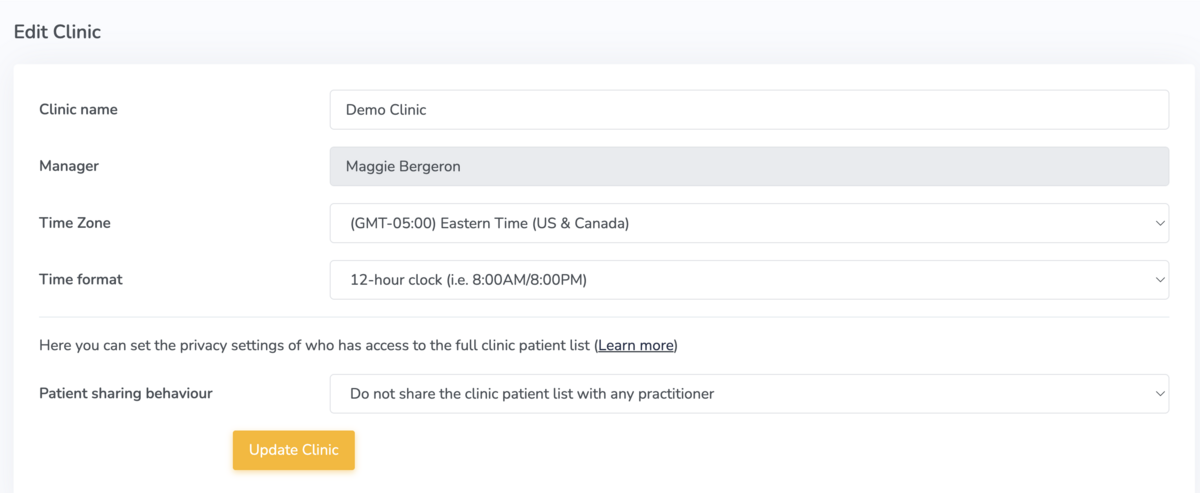
Save your changes by clicking 'Update Clinic'.
The updated settings will apply to the entire clinic.